
Docs2 min readDecember 24, 2025
Product setup: variants, swatches, size charts
Set up options cleanly so customers can choose fast and confidently.
Your theme can only display what Shopify products contain—so clean product setup matters.
Variants: keep naming consistent
Use consistent option names across products:
- Colour (not sometimes "Color", sometimes "Shade")
- Size (not "Sizing", "Size chart", etc.)
- Material (only when needed)
Consistency improves:
- Swatch rendering
- Filters
- Analytics
Swatches (two common approaches)
1) Native colour swatches (recommended if available)
If your theme supports Shopify's native variant swatches, set:
- Variant option name:
Colour - Variant values: "Black", "Navy", "Ecru", etc. Then assign swatch colours/images in Shopify's swatch settings (or the theme's variant settings, depending on your setup).
2) Image-based swatches
Use when colour names aren't enough (patterns, textures).
- Ensure each colour variant has a distinct image set
- Keep the first image representative (it's often used in grids)
Size charts
Size charts reduce returns—keep them frictionless. Best options:
- A dedicated Size guide page linked near variant selectors
- A modal/drawer triggered from the product page
- Metafield-driven charts for category-specific sizing
Simple setup pattern:
- Create a "Size guide" page
- Add a link or button near size selection
- If your theme supports it, connect a metafield so different products show different charts
Product page sanity checks
- Default selected variant makes sense
- Out-of-stock states are clear
- Add-to-cart is never ambiguous
- Returns/shipping expectations are easy to find
Next step
Add rich media properly: Product media
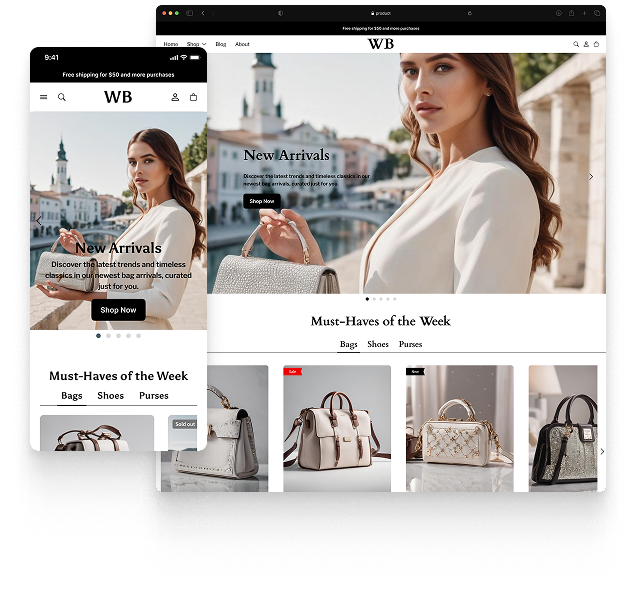
Featured theme: Fennec
Fast, responsive, SEO-ready theme built for conversion.
- Online Store 2.0 sections
- Performance-first layout
- Accessible, SEO-ready foundation
