
Docs1 min readDecember 24, 2025
Build custom pages with sections
Create landing pages by composing sections—no developer required.
You can build high-converting landing pages in Shopify by creating custom page templates and assembling sections.
When to use a custom page template
- Campaign landing pages
- Brand story pages
- Size guide pages
- Editorial content hubs
Step-by-step
- Create a new page in Shopify (Online Store → Pages)
- Open the theme editor and navigate to that page
- Create a new page template (e.g.
Page — Campaign) - Add sections in a logical order:
- Hero (headline + CTA)
- Social proof (logos, testimonials)
- Featured products/collection
- Story/benefits
- FAQ
- Final CTA
- Assign the page to the new template (if required by your admin flow)
Structure that usually converts
- Lead with a single message and a single action
- Put your best proof above the fold
- Reduce choices (one primary CTA)
- Repeat CTA after value is established
Reuse templates
If you run lots of campaigns:
- Build a "Campaign" template once
- Duplicate it for new campaigns
- Swap content, keep structure consistent
Next step
Get product pages right: Product setup
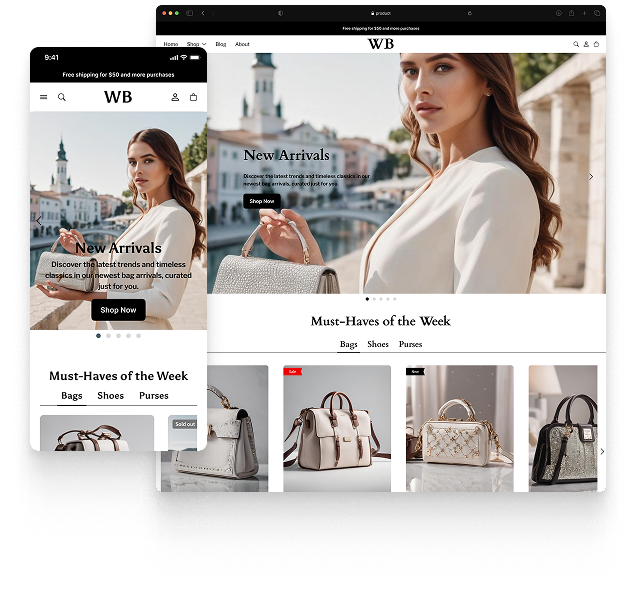
Featured theme: Fennec
Fast, responsive, SEO-ready theme built for conversion.
- Online Store 2.0 sections
- Performance-first layout
- Accessible, SEO-ready foundation
